

Valley Home IT's News feed page.
Keep up to date with our blog for the latest hints, tips and advice to get the most out of your computing.

Simplifying Online Security: The Power of Password Managers for Busy Farmers
In the modern digital landscape, online security is more important than ever for small businesses, including farmers. With multiple accounts and passwords to manage, it's easy to feel overwhelmed. But fear not, there's a simple solution that can save you time and protect your valuable information: password managers.
In the modern digital landscape, online security is more important than ever for small businesses, including farmers. With multiple accounts and passwords to manage, it's easy to feel overwhelmed. But fear not, there's a simple solution that can save you time and protect your valuable information: password managers.

Imagine having a tool that can effortlessly remember and fill in all your passwords with just a click. That's precisely what a password manager does. It's like having a trusty helper by your side, streamlining your login process and eliminating the need to remember countless passwords. Just as you organize and categorize your farming tools, a password manager organizes your passwords for easy access.
The strength of your passwords is crucial in keeping your online accounts secure. Password managers excel at this task. They can generate strong, unique passwords that are virtually impossible to crack. It's like carefully selecting the right tools or seeds for each specific farming task. By leveraging the password generation feature, you can ensure that your online accounts are well-protected from unauthorized access.
Keeping your passwords in a safe place is essential. Password managers store your passwords in an encrypted format, ensuring their security. Unlike web browser password managers, which can be vulnerable to unauthorized access, password managers provide an extra layer of protection. Think of it as securely storing your valuable farm equipment or harvest in a locked shed. Your passwords remain safe and accessible only to you.
As a Managed Service Provider (MSP), I've witnessed firsthand the positive impact of password managers. Using a password manager for over three years, I've saved considerable time and frustration. No more searching for passwords or resetting them when I need to access a site or service. I've also seen how easy it is for someone to access a user's passwords when they are stored in a web browser password manager. It's like leaving your farm equipment unlocked or not securing your valuable crops.
Conclusion: In the fast-paced world of farming, time is of the essence, and security should never be compromised. Password managers offer a simple yet powerful solution for small business owners, including farmers, to enhance their online security. By automating password management, generating strong passwords, and securely storing them, password managers simplify your digital life and provide peace of mind. Don't hesitate to explore password manager options and ensure your online presence remains protected like a well-fortified farm. If you need any guidance or assistance in choosing the right password manager, we're here to help!

Is your Windows 10 out of Date?
Just like windows 7 was outdated by windows 10, there are versions of Windows 10 that are no longer supported, and subject to vulnerabilities. Here’s how to check if your Windows 10 is up to date.
Microsoft have recently released they are no longer supporting windows 10 below version 1909.
If you are unsure what version of windows 10 you are using feel free to follow the quick steps below to check your computer is up to date with the latest version of Windows 10, and perform updates if it’s out of date.
How To Check which version of Windows 10 you have:
1) press the Windows logo key + R, type winver in the Open box, and then select OK.
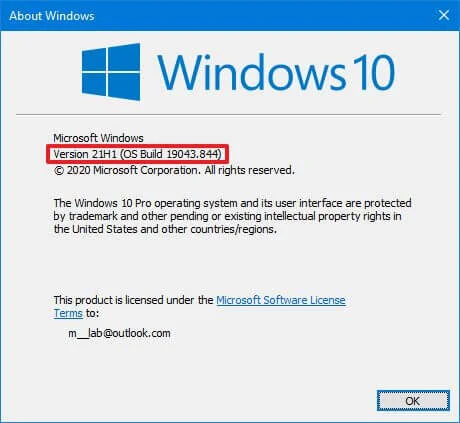
A box will appear telling you what version of windows you have installed.
Anything older than 1909 is now out of date and no longer being supported, see below example:

How to run windows update:
1) click start or press the “Windows Key”.
2) start typing: “windows update” - the option is usually selectable. Select to check for updates.
3) install the updates that are found.
4) After updates have installed and your computer has been restarted, (allow some time for coffee here), Repeat steps step 2 - 4) until you have version 20H2 or at the time of writing this version 21H1. This is currently the latest version of Windows 10.
If you struggle with any of the above steps or Windows update is not working, you may need some assistance from us. Feel free to contact us for support to have your windows patched and up to date.
If you found this helpful, please let us know.
All the best,
Sean.

Amazon Account Email Scam
Phishing attacks are a constant threat, one of the latest is targeting Amazon Account holders for their personal details. In this post, we have handy tips on how to tell a phishing email from a legitimate one.
With 97% of all cyber incidents relying on tricking people into responding to phishing emails, more than ever you need to think before you click.
One of the latest scams going around:
"Bad guys are targeting Amazon customers, urgently claiming you need to update your information within twenty-four hours or your account will be permanently disabled. They count on you getting worried and quickly act without thinking it through.
The email has several red flags like typos and bad grammar, but even if the emails are perfect—which they often are these days—it is a bad idea to click on the link in the email. Always, you should go directly to Amazon using your web browser and see if your account has any notifications. Think Before You Click."
Source quote: https://blog.knowbe4.com/amazon-phishing-scam-in-progress
Tips for Checking if an email is legitimate:
Double-check the source of the email, does the “From” Address align with where the email really came from. In some scams, the name won’t be correct for the “From” email address.
Hover your cursor above links to check their domain name. do the links go directly to www.amazon.com or does it go somewhere else such as www.amazon.tricksters.com for example? In this example, the word “amazon” is a subdomain for www.tricksters.com.
Look for typos and poor grammar.
Be wary of supplier details in .zip files or changed banking details.
Look for generalisations on addressing the reader. Has the sender addressed you personally or generalised who they are sending the email too?
Remember you are often the last line of defense for your home computer or business including your customers, friends or family.
You can find more information at the following website in regards to phishing emails and how to stay safe online via the Australian Cyber Security Centre (ACSC) Website here: https://www.cyber.gov.au/threats/email-scams

Where the Earth Moves!
Finalising the finishing touches for another website.
Congratulations to BB Contracting on the launch of their new website. It’s been a pleasure working with a new NSW Based company on their new website construction.
I wish I could have a drive of their new Toy a “CAT D6T Bulldozer.”
We setup an email and web package for BB Contracting even created a Logo.

Warm Winter Night Inside
Warm winter night inside by the fire doing computer repair and updates.
A Warm Winter night inside by the fire, doing computer repair and updates. Just need the glass of wine!
#Computerepair, #Kapunda, #Winternights, @valleyhomeit

"Backup" the cheap insurance for your computer.
Regular Backups of your computer and files are cheap insurance, and are essential just like insurance for your car, only it's optional. When you consider what you have to loose, the cost of backing up is minimal in comparison. Follow our tips and tricks to make sure you are prepared for the unexpected.
Backing up your computer or laptops digital storage is akin to insurance for your car. While you hope you never have to use it, get caught without it, and you could be up for a costly exercise, and unlike in the scenario with the car which can be replaced, those long loved photos of the kids growing up, or those important business documents cannot.

Western Digital External USB 3.0 Backup Drive.
Backing up these days is both an in-expensive and very simple process. Simply plug in your new hard drive on a windows 10 computer, type the word "Backup" into the windows search, and follow the steps to create a simple and effective backup.
In Mac OS X it gets even easier. Simply plug in your new hard drive and Mac OS will ask you if you would like to setup "Time Machine" to backup your computer from the new plugged in hard drive, if you have not used "Time Machine" in the past.
We can't stress the importance enough in the value of having multiple copies of any files you cannot afford to loose, and making sure you backup regularly. The more regular the backups the less work you will loose when, and if that day comes where you need to restore your files. Simply overwriting a file by mistake, hitting the delete button when having a cleanup, or a malicious virus encrypting your files when innocently browsing the net, you will be in a much more comfortable place knowing you have a backup of the files you need, even if you have to take it to an expert to restore them back again.
Follow these handy tips when selecting a suitable backup drive:
- Make sure you select a drive that is equivalent in size or larger than the storage on your computer.
- Only use the backup drive for backups, and not general storage.
- Don't leave your drive connected to your computer between backups, as this will defeat the purpose. When the backup has completed safely remove the drive.
- Store your external backup in a Safe, Cool Dry place, away from the computer, and if possible in another geographic location IE; a Friends Place or trusted Family member. This will ensure your data is protected from catastrophic disaster such as the house burning down or a natural disaster.
- Set a schedule to perform your backups, and stick to it!
If you have trouble remembering when to do your backups, make a note on your calendar or diary when you need to do the backup. We recommend at least once a month, IE; the first day of the month or last day. Business computers require more frequent backups, depending on the data you are generating. These backups should be anywhere between daily and weekly, with a full Monthly backup.
Remember the more copies you have of your data in multiple places, and the more frequently you backup, the safer your data will be against disaster. We can't stress the importance of a backup strategy enough.
If you're still not sure on best practice for your scenario, or just need help getting started we are always here to help. We can always be contacted on the link below.

Why is my Computer Running so SLOW?
Your computer used to speed through startup and let you open almost everything at once, but now it’s struggling to crawl along! Everything takes so much longer or crashes without warning. Something isn’t right. If it’s now so bad that you’ve found yourself drooling over the idea of a new computer, even though your system isn’t that old, we’ve got some good news: you can get your whizzy speeds back with a little TLC.

Computers generally start slowing down within 12 months, but it’s not because their parts are broken. And it’s not because they’re faulty. It’s not even because you have so many browser tabs open that you lose count. Slow computers have a number of causes, but the most common ones are easily fixed.
Background programs
Whenever your computer is turned on, it’s running programs in the background. You didn’t start them and they may not be essential to operation, but off they go anyway. You can’t even see some of them, they don’t have windows or anything to look at. A good example is your antivirus program. You don’t need to see it all the time, but you know it’s running in the background, protecting you.
Over time, more and more programs might slip into the background and casually suck up your resources, like iTunes helper, Acrobat updater, Cortana listening, Skype or Spotify. We can speed up your system by setting these background programs to run only when you need them, or remove them completely.
Application bloat
How do you improve last year’s version of a program? Add more features! The problem with this is the applications become bloated with features you may not need (or even know about), but that keep needing more and more resources. Each time the developers review their programs, they assume you’ve bought the latest and greatest computer and can run whatever they release.
This means a slow computer can sneak up after an auto-update. You may not even know the update happened, just that your computer is suddenly making you very unhappy. Eventually, your system grinds to a halt. We can remove unused applications or increase your computer power as required.
Slow hard drives
Your data is stored on a part called the hard drive. It’s usually a mechanical type that works like a record player, with a spinning platter and a ‘needle’ reading it. If your data is spread out across lots of places on the platter, the hard drive head 'needle' has to go backwards and forwards thousands of times just to retrieve a single file. Unsurprisingly, that takes more time to bring up your file. We can optimize your data to give the hard drive head a break, but an even better solution is to upgrade to an SSD. That’s a Solid State Drive that stores data in memory chips, like your USB drive, and has no moving parts. Without the physical need to move a hard drive needle, your computer can access data much faster.
Unfortunately, once your computers starts slowing, for whatever reason, the problem only gets worse. The background programs will continue to multiply, the bloat keeps coming, and the hard drive begs for relief. Rather than buy a whole new system though, it’s completely possible for your current computer to go back to being lightning fast – and for a fraction of the cost.

Is your Antivirus letting you down?
The best way to avoid a computer virus is by using common sense, but that doesn’t mean you’ll be safe from attack. Even the most careful user can find themselves infected in an instant and spreading the virus faster than a sneeze in flu season. It’s why antivirus software is still the first package we install on all systems – because you never know when you’ll be attacked. But should you choose free or paid antivirus?

Advertising: Much like a free app making its fortune with in-app purchases, the free antivirus software will push for payment. Expect popup boxes pestering you to sign up to the paid version at least daily. Some free options will also try to change your browser home page and default search engine, an inconvenience you may be stuck with. Paid options are more respectful and largely invisible unless they’ve detected a problem.
Effectiveness: It’s fair to expect your antivirus to detect malware, and testing showed that in a head-to-head battle free and paid are about equal at catching known infections. And therein lies the kicker: generally speaking, free antivirus needs to have recorded a virus to its library before it can detect it. Paid antivirus is more likely to identify and stop a new virus. It essentially bases the detection on suspicious behavior, source and attributes, a far more effective method of detection.
Features: Free antivirus options are usually created from the paid version, taking out everything except the bare minimum. In your paid version, you can expect advanced features like spam filters, firewalls, parental controls and secure web browsing. Some paid antivirus will also update your other software packages, forming a more secure protection against attacks. For example, you might view a malicious image file that takes advantage of an exploit in your PDF software. Unfortunately, hackers have advanced beyond simple tactics and it’s not just about avoiding email attachments anymore.
Support: Free antivirus options are the most popular choice because they’re… free. Obviously. This also means there’s generally no support available. If there’s a problem or conflict with another program, you may find yourself without protection until it can be resolved. Paid antivirus options usually include telephone support, ready to help with problems ranging from installation to system diagnostics.
Ease of use: Depending on what you use your computer for, this may be an important concern. Free antivirus options are easy to install and use, but are very limited in their flexibility. They come as-is, meaning you can’t pick and choose what it monitors or how it reacts. For example, users occasionally find it necessary to disable ALL protections in order to install a network game. Paid versions are more likely to allow you to adapt the way it runs, switching features on and off as required.
Free antivirus is fine for very basic protection, those on a budget or those with an older PC. In these cases, something is always better than nothing. But we generally recommend you go with a paid antivirus to defend you from the new attacks that are released daily, and to ensure you’ve got solid protection that will make a real difference to your digital safety.

5 Ways to Love Your Laptop (and Make It Last Longer)
Hi,
In this newsletter, we talk about how to prevent computer problems before they happen. This will help extend the overall life of your computer.
Laptop computers are one of the most fragile pieces of tech you’ll ever buy, but they also receive the roughest treatment. Extend your laptop’s life with these five easy tips.

Avoid sharp movements during use: While some newer laptops have an SSD drive with no moving parts, many laptops still have mechanical drives which work a bit like a record player. It has a head which is like a record player needle, and a data storage platter like a record. The head hovers just microns over the surface of the spinning disk and a knock can cause them to collide. Just like a deep scratch on a record, whatever data was on that section will be corrupted and lost. Make sure you always power down the laptop before moving it or packing it away.
Keep it cool: Your laptop has 2 sure ways of telling you when it’s too hot - the fan and auto-shut off. Each component in your laptop is generating heat, and the harder it’s working, the more heat each creates. The fan runs to blow that heat out the vent and keep the components cool enough to continue operating. Because there’s no clear temperature indicator, your fan volume is the best guide to monitoring laptop heat. While the laptop is working hard (and getting hot), the fan will spin faster and louder. It’s not uncommon for it to sound like a hair dryer at times! Help it out by keeping your fan vent clear of books, blankets, and other blockages.
Respect the cords: Inside those robust looking power cords are a bunch of delicate wires, begging you to be gentle. You’d think they should be able to take a beating, get bent, twisted and run over with chair wheels, but unfortunately not. Keep cords clear of sharp or flat-edged items, and when wrapping for transport try to mimic how it came out of the box. Wrap the cord gently around itself or the power adapter and secure with Velcro or similar.
Carry it in padded style: Look for a bag that not only fits your laptop but also provides padding. Your system will endure countless bumps and bangs as the bag is moved around, even with careful use. Ideally your bag has bottom, side AND top padding, as well as a waterproof outer. If backpacks aren’t your style, look for padded or hard-shelled sleeves.
Back it up: Laptops give us fantastic mobility but as mentioned above they’re quite fragile. While a backup won’t make your laptop components last longer, it will make minor repairs that much easier. You’re more likely to take it in for a service if your data is accessible elsewhere, and of course, in the event of accident or theft, you’re fully prepared. Consider an off-site backup for additional protection, so no matter what happens with your laptop you still have your important files.

Should You Buy a Consumer or Business PC?
Hello,
In this newsletter, we talk about getting the right hardware for your business to keep it safe and running smoothly.
Before buying a computer for work, it’s important to consider whether your best bet is to get a consumer model or one built specifically for business use.
You’ve probably seen business computers with the same brand name that you have at home, but that’s where the similarities end. Investing in the right system now will pay off long term, saving you time, money and a whole lot of frustration. Here’s what you need to know to make the best choice for your business and budget.
Business-class Features
When you invest in a computer, you want certain inclusions built-in and ready to go. For a business, those include features that will make your network more secure and staff more productive. For example, fingerprint readers, remote desktop software and data encryption tools. The operating system that comes pre-installed on a business-class computer will also have features the consumer options don’t, including the ability to join corporate networks. Computers designed for home use come with Windows Home or Starter editions, which may require hours of expert assistance to link into a secure business network.
Usage Requirements
Work out how often you’ll be using the computer for business. If the computer is mostly for home use and only occasionally for work, then a consumer PC with the appropriate work software and settings will be fine. On the other hand, a computer that is mostly for business use should be a business-class computer, not just for security but also build quality reasons.
Durability and Reliability
It’s probably no surprise that consumer PCs don’t have the same build quality as business ones. In fact, consumer models only have an expected lifespan of around 2 years. They just aren’t built to last. Business-class computers are built to last several years, with higher quality components and rigorous testing at every level. Most parts (if not all) are name-brand with an emphasis on reliability and long term durability.
Warranty and Service
Unfortunately, when a consumer PC fails, the burden is on the owner to send it away for repairs. The terms of the warranty will usually state that any other attempt to repair it will void the warranty. Repairs can then take weeks and often involve a frustrating process of paperwork and following up. Contrast that with what happens when a business computer needs service – the technicians will come to you and fix it on the spot, often within hours. Business users enjoy a professional experience with priority status and a dedicated support line, all designed to reduce down-time and get you operational, faster.