

Valley Home IT's News feed page.
Keep up to date with our blog for the latest hints, tips and advice to get the most out of your computing.

Simplifying Online Security: The Power of Password Managers for Busy Farmers
In the modern digital landscape, online security is more important than ever for small businesses, including farmers. With multiple accounts and passwords to manage, it's easy to feel overwhelmed. But fear not, there's a simple solution that can save you time and protect your valuable information: password managers.
In the modern digital landscape, online security is more important than ever for small businesses, including farmers. With multiple accounts and passwords to manage, it's easy to feel overwhelmed. But fear not, there's a simple solution that can save you time and protect your valuable information: password managers.
Imagine having a tool that can effortlessly remember and fill in all your passwords with just a click. That's precisely what a password manager does. It's like having a trusty helper by your side, streamlining your login process and eliminating the need to remember countless passwords. Just as you organize and categorize your farming tools, a password manager organizes your passwords for easy access.
The strength of your passwords is crucial in keeping your online accounts secure. Password managers excel at this task. They can generate strong, unique passwords that are virtually impossible to crack. It's like carefully selecting the right tools or seeds for each specific farming task. By leveraging the password generation feature, you can ensure that your online accounts are well-protected from unauthorized access.
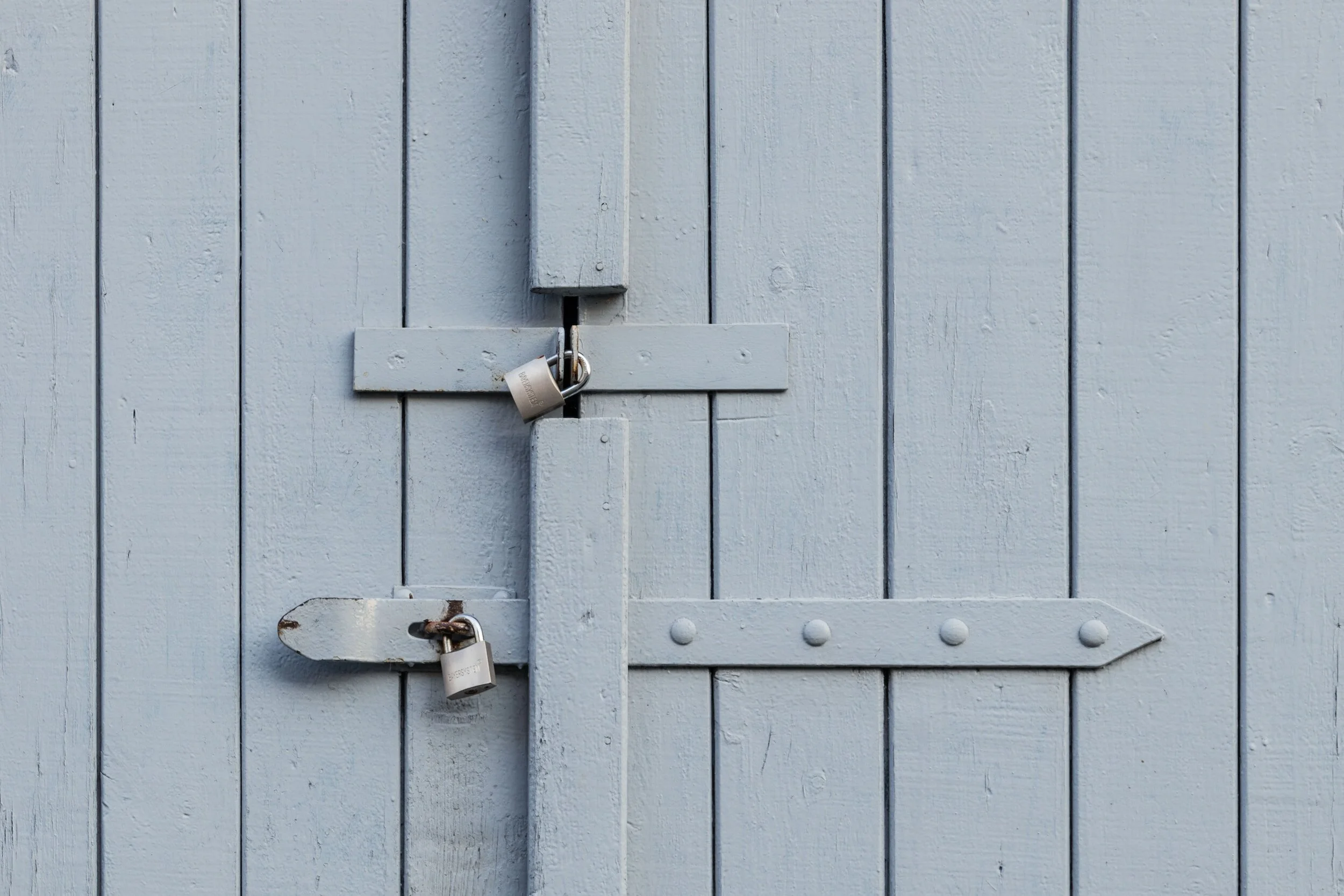
Keeping your passwords in a safe place is essential. Password managers store your passwords in an encrypted format, ensuring their security. Unlike web browser password managers, which can be vulnerable to unauthorized access, password managers provide an extra layer of protection. Think of it as securely storing your valuable farm equipment or harvest in a locked shed. Your passwords remain safe and accessible only to you.
As a Managed Service Provider (MSP), I've witnessed firsthand the positive impact of password managers. Using a password manager for over three years, I've saved considerable time and frustration. No more searching for passwords or resetting them when I need to access a site or service. I've also seen how easy it is for someone to access a user's passwords when they are stored in a web browser password manager. It's like leaving your farm equipment unlocked or not securing your valuable crops.
Conclusion: In the fast-paced world of farming, time is of the essence, and security should never be compromised. Password managers offer a simple yet powerful solution for small business owners, including farmers, to enhance their online security. By automating password management, generating strong passwords, and securely storing them, password managers simplify your digital life and provide peace of mind. Don't hesitate to explore password manager options and ensure your online presence remains protected like a well-fortified farm. If you need any guidance or assistance in choosing the right password manager, we're here to help!

"Backup" the cheap insurance for your computer.
Regular Backups of your computer and files are cheap insurance, and are essential just like insurance for your car, only it's optional. When you consider what you have to loose, the cost of backing up is minimal in comparison. Follow our tips and tricks to make sure you are prepared for the unexpected.
Backing up your computer or laptops digital storage is akin to insurance for your car. While you hope you never have to use it, get caught without it, and you could be up for a costly exercise, and unlike in the scenario with the car which can be replaced, those long loved photos of the kids growing up, or those important business documents cannot.

Western Digital External USB 3.0 Backup Drive.
Backing up these days is both an in-expensive and very simple process. Simply plug in your new hard drive on a windows 10 computer, type the word "Backup" into the windows search, and follow the steps to create a simple and effective backup.
In Mac OS X it gets even easier. Simply plug in your new hard drive and Mac OS will ask you if you would like to setup "Time Machine" to backup your computer from the new plugged in hard drive, if you have not used "Time Machine" in the past.
We can't stress the importance enough in the value of having multiple copies of any files you cannot afford to loose, and making sure you backup regularly. The more regular the backups the less work you will loose when, and if that day comes where you need to restore your files. Simply overwriting a file by mistake, hitting the delete button when having a cleanup, or a malicious virus encrypting your files when innocently browsing the net, you will be in a much more comfortable place knowing you have a backup of the files you need, even if you have to take it to an expert to restore them back again.
Follow these handy tips when selecting a suitable backup drive:
- Make sure you select a drive that is equivalent in size or larger than the storage on your computer.
- Only use the backup drive for backups, and not general storage.
- Don't leave your drive connected to your computer between backups, as this will defeat the purpose. When the backup has completed safely remove the drive.
- Store your external backup in a Safe, Cool Dry place, away from the computer, and if possible in another geographic location IE; a Friends Place or trusted Family member. This will ensure your data is protected from catastrophic disaster such as the house burning down or a natural disaster.
- Set a schedule to perform your backups, and stick to it!
If you have trouble remembering when to do your backups, make a note on your calendar or diary when you need to do the backup. We recommend at least once a month, IE; the first day of the month or last day. Business computers require more frequent backups, depending on the data you are generating. These backups should be anywhere between daily and weekly, with a full Monthly backup.
Remember the more copies you have of your data in multiple places, and the more frequently you backup, the safer your data will be against disaster. We can't stress the importance of a backup strategy enough.
If you're still not sure on best practice for your scenario, or just need help getting started we are always here to help. We can always be contacted on the link below.

Is your Antivirus letting you down?
The best way to avoid a computer virus is by using common sense, but that doesn’t mean you’ll be safe from attack. Even the most careful user can find themselves infected in an instant and spreading the virus faster than a sneeze in flu season. It’s why antivirus software is still the first package we install on all systems – because you never know when you’ll be attacked. But should you choose free or paid antivirus?

Advertising: Much like a free app making its fortune with in-app purchases, the free antivirus software will push for payment. Expect popup boxes pestering you to sign up to the paid version at least daily. Some free options will also try to change your browser home page and default search engine, an inconvenience you may be stuck with. Paid options are more respectful and largely invisible unless they’ve detected a problem.
Effectiveness: It’s fair to expect your antivirus to detect malware, and testing showed that in a head-to-head battle free and paid are about equal at catching known infections. And therein lies the kicker: generally speaking, free antivirus needs to have recorded a virus to its library before it can detect it. Paid antivirus is more likely to identify and stop a new virus. It essentially bases the detection on suspicious behavior, source and attributes, a far more effective method of detection.
Features: Free antivirus options are usually created from the paid version, taking out everything except the bare minimum. In your paid version, you can expect advanced features like spam filters, firewalls, parental controls and secure web browsing. Some paid antivirus will also update your other software packages, forming a more secure protection against attacks. For example, you might view a malicious image file that takes advantage of an exploit in your PDF software. Unfortunately, hackers have advanced beyond simple tactics and it’s not just about avoiding email attachments anymore.
Support: Free antivirus options are the most popular choice because they’re… free. Obviously. This also means there’s generally no support available. If there’s a problem or conflict with another program, you may find yourself without protection until it can be resolved. Paid antivirus options usually include telephone support, ready to help with problems ranging from installation to system diagnostics.
Ease of use: Depending on what you use your computer for, this may be an important concern. Free antivirus options are easy to install and use, but are very limited in their flexibility. They come as-is, meaning you can’t pick and choose what it monitors or how it reacts. For example, users occasionally find it necessary to disable ALL protections in order to install a network game. Paid versions are more likely to allow you to adapt the way it runs, switching features on and off as required.
Free antivirus is fine for very basic protection, those on a budget or those with an older PC. In these cases, something is always better than nothing. But we generally recommend you go with a paid antivirus to defend you from the new attacks that are released daily, and to ensure you’ve got solid protection that will make a real difference to your digital safety.

How to Stay Safe While Being Social
Hello,
Whether it's children accidentally straying into the dark parts of the internet or adults willingly giving away their information online, this month is all about staying safe online.
How to Stay Safe While Being Social
People happily share their private information online, building robust libraries that can easily become a one-stop goldmine for fraudsters.
It’s not exactly the intention everyone has when they sign up, as the whole point of Facebook is to share your life with your friends. It hooks us into a global community and the experience does depend on us making certain privacy sacrifices.
So how do you balance being social with staying safe?
On Facebook alone, the average person shares 13 pieces of personal information ranging from a fairly innocent name/email combo, all the way to mothers maiden name and home address.
It doesn’t sound like a lot, but those 13 pieces have the power to unravel your life within minutes.
Even checking in at home has become the norm, helping to create a multi-dimensional online identity. The details are available to anyone who cares to look, whether they’re a friend keeping in the loop, or a someone with a much darker agenda.
The problem is, you just don’t know who’s looking at your profile or why.
For example, someone could try accessing your email account by clicking the ‘Forgot password’ link. The email service follows its security rules and asks identifying questions like ‘which high school did you go to? What is your pet’s name?’ Unfortunately, the most common identifying checks and answers are probably available on Facebook.
Once your email address is has been breached, hackers can use that to break into other services and go through, clicking ‘Reset Password’ on site after site, account after account – they have full access to your email, so there’s nothing stopping them from emptying your bank accounts – or worse.
7 Ways To Secure Your Facebook Without Missing Out on the Fun
- Begin by previewing your profile as others see it
- Review what should and should not be visible to strangers
- Consider only sharing partial details, like birth day and month, but not the year
- Only ever ‘Friend’ people you know and trust
- Be wary of duplicate or ‘odd’ friend activity – hackers will often clone or hack a friend’s profile and initiate an urgent and uncharacteristic request for money
- Update your past privacy settings too
- Set default future sharing to ‘friends only’