

Valley Home IT's News feed page.
Keep up to date with our blog for the latest hints, tips and advice to get the most out of your computing.

Is your Windows 10 out of Date?
Just like windows 7 was outdated by windows 10, there are versions of Windows 10 that are no longer supported, and subject to vulnerabilities. Here’s how to check if your Windows 10 is up to date.
Microsoft have recently released they are no longer supporting windows 10 below version 1909.
If you are unsure what version of windows 10 you are using feel free to follow the quick steps below to check your computer is up to date with the latest version of Windows 10, and perform updates if it’s out of date.
How To Check which version of Windows 10 you have:
1) press the Windows logo key + R, type winver in the Open box, and then select OK.
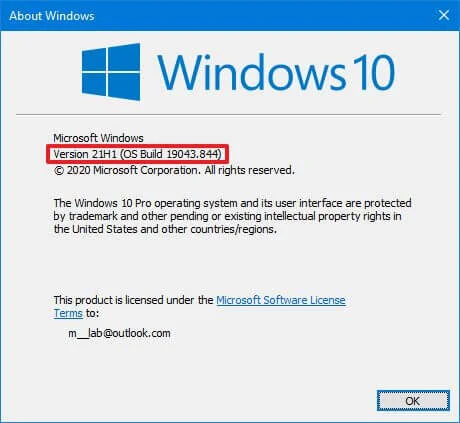
A box will appear telling you what version of windows you have installed.
Anything older than 1909 is now out of date and no longer being supported, see below example:

How to run windows update:
1) click start or press the “Windows Key”.
2) start typing: “windows update” - the option is usually selectable. Select to check for updates.
3) install the updates that are found.
4) After updates have installed and your computer has been restarted, (allow some time for coffee here), Repeat steps step 2 - 4) until you have version 20H2 or at the time of writing this version 21H1. This is currently the latest version of Windows 10.
If you struggle with any of the above steps or Windows update is not working, you may need some assistance from us. Feel free to contact us for support to have your windows patched and up to date.
If you found this helpful, please let us know.
All the best,
Sean.

"Backup" the cheap insurance for your computer.
Regular Backups of your computer and files are cheap insurance, and are essential just like insurance for your car, only it's optional. When you consider what you have to loose, the cost of backing up is minimal in comparison. Follow our tips and tricks to make sure you are prepared for the unexpected.
Backing up your computer or laptops digital storage is akin to insurance for your car. While you hope you never have to use it, get caught without it, and you could be up for a costly exercise, and unlike in the scenario with the car which can be replaced, those long loved photos of the kids growing up, or those important business documents cannot.

Western Digital External USB 3.0 Backup Drive.
Backing up these days is both an in-expensive and very simple process. Simply plug in your new hard drive on a windows 10 computer, type the word "Backup" into the windows search, and follow the steps to create a simple and effective backup.
In Mac OS X it gets even easier. Simply plug in your new hard drive and Mac OS will ask you if you would like to setup "Time Machine" to backup your computer from the new plugged in hard drive, if you have not used "Time Machine" in the past.
We can't stress the importance enough in the value of having multiple copies of any files you cannot afford to loose, and making sure you backup regularly. The more regular the backups the less work you will loose when, and if that day comes where you need to restore your files. Simply overwriting a file by mistake, hitting the delete button when having a cleanup, or a malicious virus encrypting your files when innocently browsing the net, you will be in a much more comfortable place knowing you have a backup of the files you need, even if you have to take it to an expert to restore them back again.
Follow these handy tips when selecting a suitable backup drive:
- Make sure you select a drive that is equivalent in size or larger than the storage on your computer.
- Only use the backup drive for backups, and not general storage.
- Don't leave your drive connected to your computer between backups, as this will defeat the purpose. When the backup has completed safely remove the drive.
- Store your external backup in a Safe, Cool Dry place, away from the computer, and if possible in another geographic location IE; a Friends Place or trusted Family member. This will ensure your data is protected from catastrophic disaster such as the house burning down or a natural disaster.
- Set a schedule to perform your backups, and stick to it!
If you have trouble remembering when to do your backups, make a note on your calendar or diary when you need to do the backup. We recommend at least once a month, IE; the first day of the month or last day. Business computers require more frequent backups, depending on the data you are generating. These backups should be anywhere between daily and weekly, with a full Monthly backup.
Remember the more copies you have of your data in multiple places, and the more frequently you backup, the safer your data will be against disaster. We can't stress the importance of a backup strategy enough.
If you're still not sure on best practice for your scenario, or just need help getting started we are always here to help. We can always be contacted on the link below.